Sunday, 8 July 2018

Houdini – iOS 12 Jailbreak Achieved by Abraham Masri


Apple seeded first developer beta of upcoming iOS 12 latest firmware in WWDC18. Unexpectedly, iOS 12 jailbreak has already been successfully achieved by the hacker.  Here’s all you need to know about Houdini jailbreak update for iOS 12.
Abraham Masri, the developer of Houdini semi jailbreak for iOS 11 – 11.3.1 and iOS 10 has successfully achieved iOS 12 jailbreak. He tweeted a photo of Houdini jailbreak on iPhone 7 device running iOS 12 latest version.
Apple is considering the iOS 12 as a Stability and Performance based update means iOS 12 jailbreak is not easy. But, Abraham Masri has proven that iOS 12 is also jailbreakable.
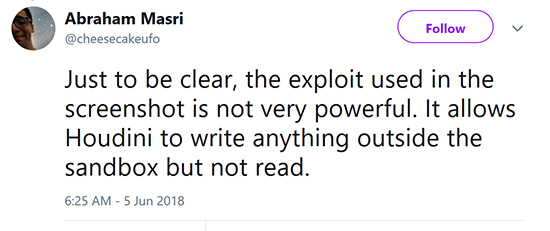
Here’s what he posted on his Twitter.
However, the exploit that used to jailbreak iOS 12 is not very powerful and it only allows Houdini to write anything outside the sandbox but not read. but it is great achievement and now we know iOS 12 jailbreak development has already started.
iOS 12 still on developing stage. Apple will continue testing & securing iOS 12 as much as possible. Meanwhile, hacker are working hard to liberate iOS 12 with proper jailbreak solutions. Wait and see, until Apple releases the first public version of iOS 12 and let’s hope up that the iOS 12 jailbreak will alive at the time.
Sponsor Ads:
Gihosoft Free iPhone Data Recovery is a professional iPhone Data Recovery software to get back all your lost text message, photo, video, call history, note, contact and more from iPhone/iPad/iPod Touch.
Gihosoft Android data recovery Free is a super awesome software specialized in Android file recovery. With this program, you are able to recover deleted photos, music, videos, messages, contacts, call logs, WhatsApp messages, Viber chat history and more from Samsung, Huawei, LG, HTC, Motorola, Google, Oneplus, Sony, Lenovo, ZTE and other Android devices directly. Meanwhile, this Android data recovery software is available for both Windows and Mac platforms.

Saturday, 16 June 2018

How to Delete Numbers from iPhone?


Delete Phone Numbers from Contacts List One by One

All iDevices have a built-in contact deletion feature that allows you to delete unwanted numbers from your contacts list.

Steps to Delete Contacts from iPhone

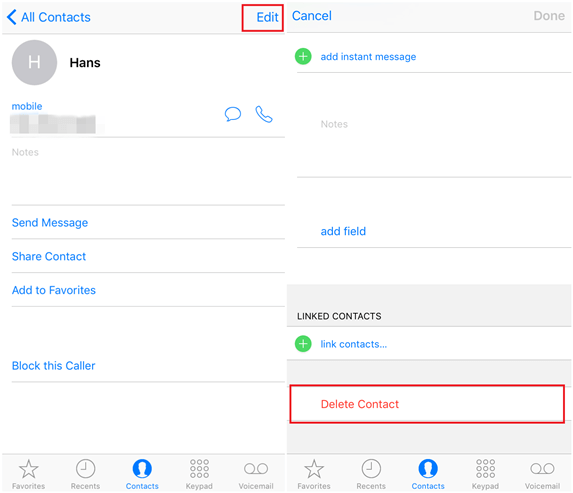
Step 1. Open Contacts app on your iPhone.
Step 2. Find a contact that you wish to delete and open the contact page by tapping the contact name.
Step 3. Now tap Edit and then find and select the 'Delete Contact' option.
delete-iphone-contacts
Step 4. You will need to tap Delete Contact again to confirm your action. The contact will now be deleted from your iPhone's contacts list.Sponsor Ads:
Gihosoft iPhone Data Recovery is a professional iPhone Data Recovery software to get back all your lost text message, photo, video, call history, note, contact and more from iPhone/iPad/iPod Touch. It offers a full solution to recover your lost data in different tough situations. Besides recovering data directly from iPhone, iPad and iPod touch, it also allows you to recover data from iCloud and iTunes backup files.

Note
One con of this method is that you cannot delete multiple contacts, instead you will have to delete contacts one by one. Another con is that contacts deleted via this method can be recovered by a professional tool such as iMyFone Umate Pro so it's not a good option to protect your privacy.
If you have already deleted contacts from your iPhone and want to permanently erase them so that they cannot be recovered, then it is recommended that you use third-party software iMyFone Umate Pro. You can use Umate Pro to make your deleted iPhone contacts 100% unrecoverable.

How to Backup iPhone without Computer


Can You Backup Your iPhone without a Computer?

There are two ways through which you can back up your iPhone without a computer. And we will discuss these two ways in the following part. Please keep scrolling and reading and find the solutions for how you can take backup of your iPhone without using your computer.

A. Backup using iCloud

The first way to backup iPhone is to use iCloud. iCloud is an Apple's cloud service that offers 5GB of storage and requires a stable internet connection. Therefore, make sure that you have a good internet connection while you use this method. To backup, follow the steps given below.
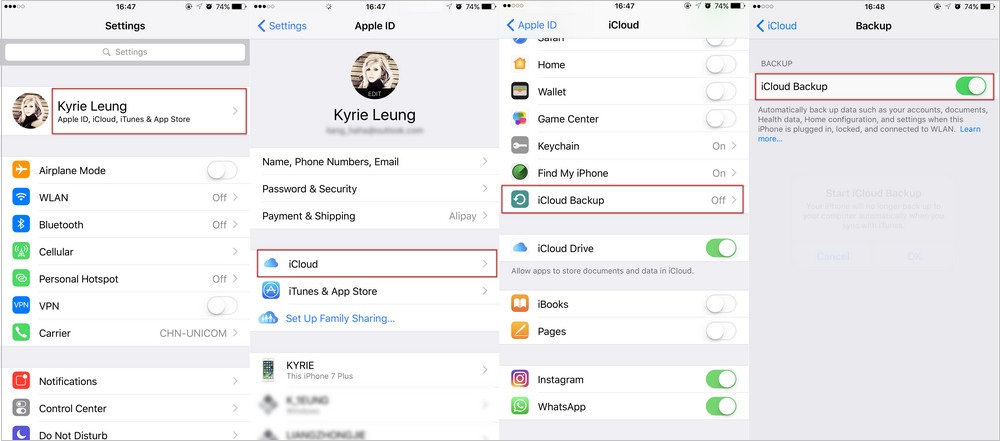
  • First of all, open 'Settings' in your iPhone.
  • Tap on your 'Apple ID' now or '[your name]' if you're running iOS 11. Go into the 'iCloud' tab and then scroll down to select the 'iCloud Backup' option.
  • Now, make sure to slide the toggle switch to turn on the iCloud backup if it is not already and proceed to the next step.
  • Once you've enabled iCloud Backup you are good to go to initiate the backup. You'll now notice that, 'Back Up Now' button is available for you in the middle of the screen. Hit on it to initiate the process of backing up iPhone without the access of a computer.
backup iPhone using iCloud

b. Backup using Google Drive

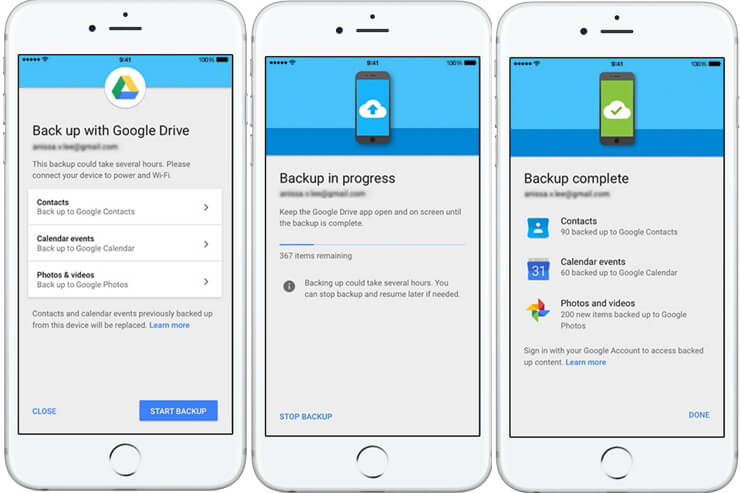
Here is another way to backup iPhone without computer. That's using Google Drive. It is a file storage service developed by Google that aims to offer 15GB of storage to the users in order to get their files uploaded. To use this method, again you will need to have a good Wi-Fi network. But the downside of using this way will be that you will only be allowed to backup contacts, photos, calendar on iPhone.Gihosoft iPhone Data Recovery is a professional iPhone Data Recovery software to get back all your lost text message, photo, video, call history, note, contact and more from iPhone/iPad/iPod Touch. It offers a full solution to recover your lost data in different tough situations. Besides recovering data directly from iPhone, iPad and iPod touch, it also allows you to recover data from iCloud and iTunes backup files.

  • Take your iPhone and install Google Drive app.
  • Launch the Google Drive app after installing it on your iPhone and tap on the 'menu' icon. The menu icon will be in the form of three horizontal lines on the top left.
  • Once you hit on it, you then need to choose the 'Settings' tab from the options available.
  • Lastly, you are required to hit on the 'Backup' tab and then push the 'START BACKUP' button to initiate the process. That's it, now you've backed up your iPhone contacts, photos, calendar without a computer.
backup iPhone using Google drive

Wednesday, 13 June 2018

How to Download Paid Apps & Games for free from Safari Browser..No Jailbreak No App required!

Confused

with the title?? Well this is true. This is a new method for downloading apps

and games from Safari Browser of your iOS device without having to pay any

penny. You even don’t have to download the third party apps like vShare. This

is a completely new method for downloading apps and games.

This website

is completely safe and easy to download your favorite apps and games. I tried

this site and was really impressed by its service. It is really easy and simple

to use . So if you also like to get paid apps for free without any apps or

jailbreak then simply follow these steps.

Let’s get

started…

Step 1: Open

the Safari Browser and type ios.hipstore.mobi in the address bar.
Step 2: Now

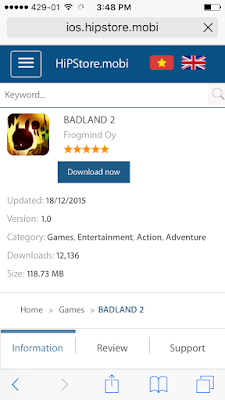
type the name of the app or game that you wish to install in the search bar. (I

entered Badland 2 which is $4.99 on AppStore) and Click on the correct result that are displayed.
Step 3: You

will now see the Download now tab. Tap on that.
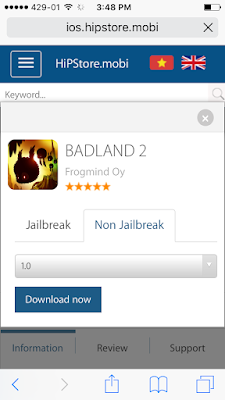
Step 4: You

will now have an option to select the versions of the particular game or

application. Select the desired version that you wish to install and hit

Download now.
Step 5: A

pop up message will appear. Tap on open. (Don’t worry you will not be

redirected to the AppStore)
Step 6: Wait

for 10-15 seconds and you will see another pop up message. Hit install and you’re

good to go.
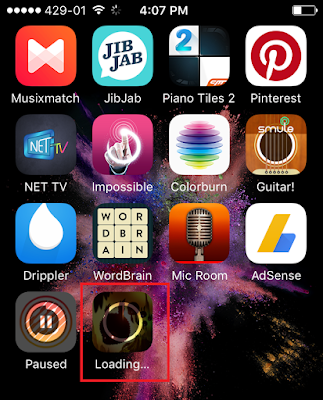
Step 7: Go

to your homescreen and you may see your app downloading there.
So what you

think about this awesome trick?

Do you like this story?
Sponsor Ads:
Gihosoft iPhone Data Recovery is a professional iPhone Data Recovery software to get back all your lost text message, photo, video, call history, note, contact and more from iPhone/iPad/iPod Touch. It offers a full solution to recover your lost data in different tough situations. Besides recovering data directly from iPhone, iPad and iPod touch, it also allows you to recover data from iCloud and iTunes backup files.

Let us know

in the comments below.

Friday, 8 June 2018

Unlock iPhone without Pressing Any Button

Unlock iPhone without Pressing Any Button

Unlock iPhone without Home Button

This method involves changing the iPhone lock screen behavior so that you can unlock iPhone without home button. The following steps should help you unlock iPhone without using home button:
Step 1: Open settings and then tap General.
Step 2: Locate Accessibility in the General menu and click it.
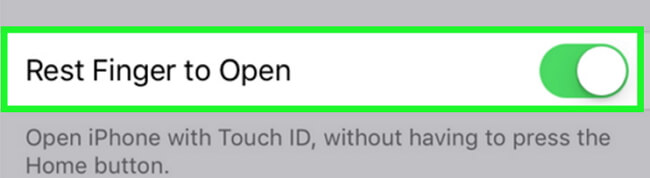
Step 3: Scroll down to Home Button. Toggle on Rest Finger to Open. This will allow you to unlock your iPhone by simply placing your finger on its Home button instead of pressing it.
rest-finger-to-open

Unlock iPhone without Power Button

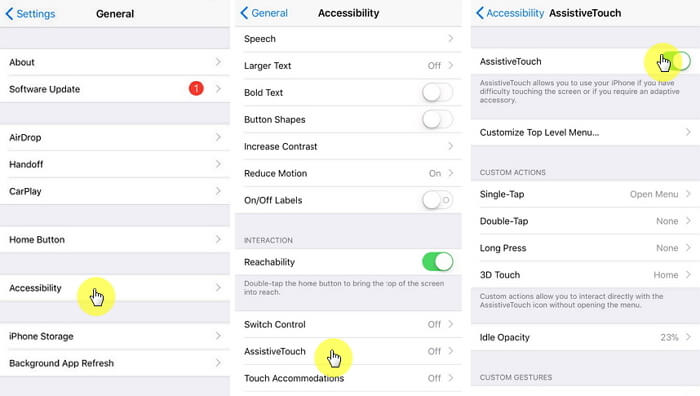
For this method to work, you need to enable AssistiveTouch on the iPhone. To turn on AssistiveTouch, follow these steps:
Step 1: Visit Settings, tap General and then Accessibility.
Step 2: Locate AssistiveTouch and toggle it on.  
enable-assistivetouch-on-iphone
After turning on AssistiveTouch, follow the steps below to unlock your device without pressing the power button:
Step 1: Open AssistiveTouch menu by tapping the Virtual Home icon and then tap Device.
Step 2: Tap Unlock screen.
Gihosoft iPhone Data Recovery is a professional iPhone Data Recovery software to get back all your lost text message, photo, video, call history, note, contact and more from iPhone/iPad/iPod Touch. It offers a full solution to recover your lost data in different tough situations. Besides recovering data directly from iPhone, iPad and iPod touch, it also allows you to recover data from iCloud and iTunes backup files. What's more, it supports Smart Recovery modes that can find your iPhone data quickly.
assistive-touch

Saturday, 12 August 2017

How to install iOS 11 public beta on your iPad

How to install iOS 11 public beta on your iPad

  1. First, make sure that you have created a backup of your device

Before trying to do anything, make sure that you already have a full backup of your device, so you can restore your device if in case something goes wrong during the process. There are two methods you can use to back up your device (iCloud and iTunes). In this article, we will show you how to back up your iPad with iTunes.Must Read:clear search instagram

Step one: First off, connect your iPad to a Mac or a Windows PC and then open iTunes (make sure that you now have the latest version of iTunes on your computer)
Step two: Select your iPad in iTunes and then hit Back Up Now on the right hand side.
  1. How to install iOS 11 public beta on your iPad

Once you have a full backup of your device, you are now safe to install iOS 11 public beta on your iPad. If you need help, check out the steps below.Must Read:how to fix iPhone 1970

Step one: First off, you need to sign up in the iOS 11 public beta program. To do this, head over to this link and hit Sign Upbutton to proceed Must Read:videos cache
Step two: Once you are done, enter your Apple ID details and click Sign In. After that, click on Download profile and hit Installfrom the Install Profile screen
Step three: You will be prompted to restart your iPad to apply changes. Once your iPad finishes booting up, launch the Settingsapp from your home screen, then select General and hit Software Update. Once you are in, you will notice that the iOS 11 public beta is now available. You simply need to hit Download and Install button
Step four: Agree to the terms and conditions. After that, iOS 11 public beta will start downloading and verifying the update (your iPad will reboot during the process).

Wednesday, 7 June 2017

10 of the Best SEO Tips for Google Mobile-First Indexing 2017

Approximately 80 percent of Internet users own a smartphone. It’s no wonder why mobile users surpassed desktop computers for bandwidth used online. Instead of heading home and getting on the computer to look something up or to chat on Facebook, people can do it while at the grocery store.
Because mobile technology is so prevalent in today’s society, a new way to develop websites has been formulated. Thus enters in the idea of a mobile-first index.
What this means is that your website will be judged based on its capacity to work in a mobile environment. For instance, Google’s indexing algorithms will pit your layout and the site’s overall functionality against how it would perform on a smartphone.

Why is the Mobile-First Index So Important?

Mobile devices play a crucial role in how sites are designed today. Not only will people abandon a website if it looks poorly on a smartphone display, but as many as 57 percent of users state they will not recommend that site.
In the smartphone and tablet era, design needs to incorporate a variety of elements and layouts for smaller displays. Things like small fonts and difficult-to-operate navigation can easily decrease visitor engagement.
The loss of interaction can lead to decreased sales, visitor interaction and hits to a brand’s reputation. By putting more effort into mobile-first index SEO, you can avoid most of these issues.
Here are 10 of the best optimization tips I can find for improving your site for Google mobile indexing.

1. Scan Your Site for Flaws

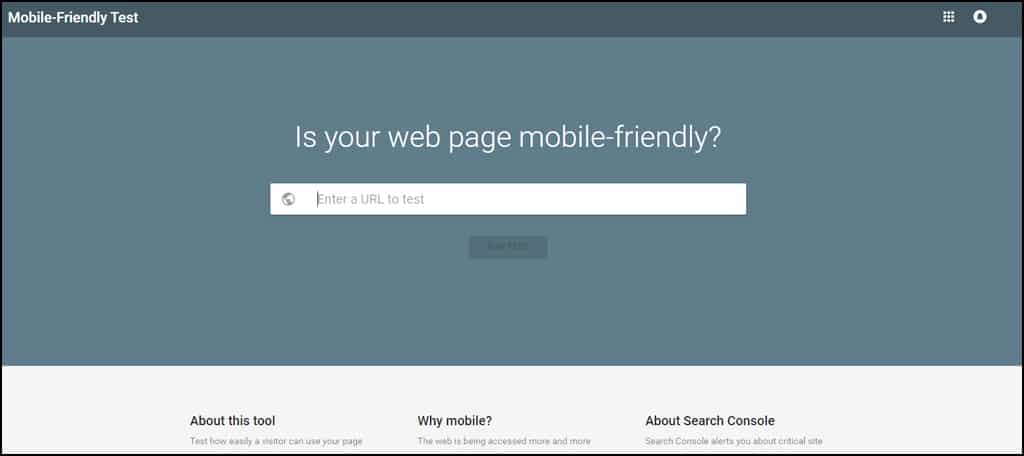
Mobile Friendly Test
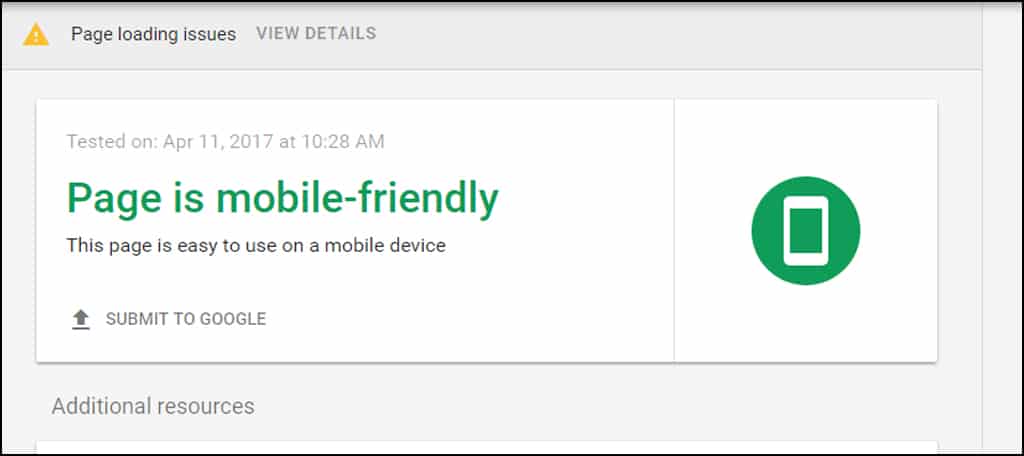
The first step you should take is to scan your site for flaws when it comes to mobile search engine optimization. Using tools such as Google’s Mobile-Friendly Test can be instrumental when developing design strategies.
The test just takes a moment of time but will demonstrate how well your design performs in a hand-held environment. It will display any errors the site may have while being indexed by Google’s site crawler. This test will also show elements that are blocking Googlebot by design, such as advertiser links.
Easy Mobile Use
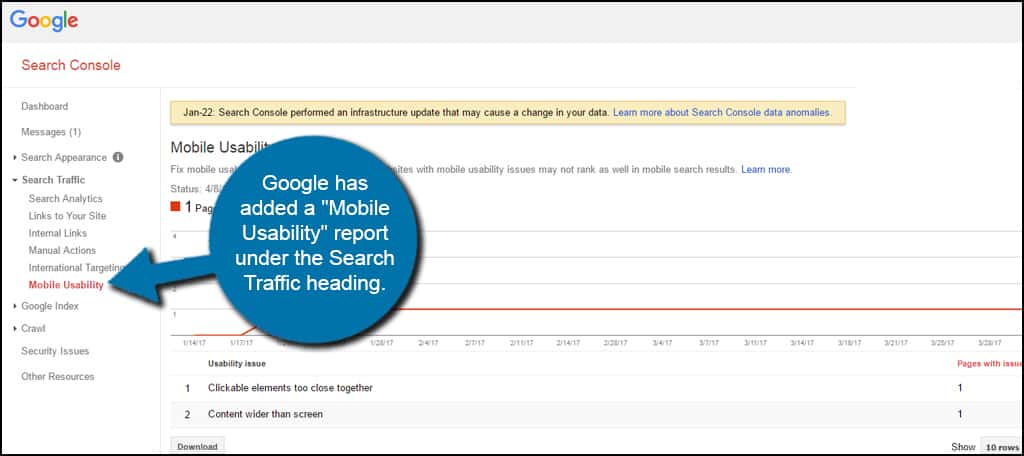
It will also be beneficial to take a look in your Webmasters Tools Search Console. Google has added a “Mobile Usability” report under the Search Traffic heading that will show issues regarding the site. This is because of the January 22nd, 2017 infrastructure update which analyzes various elements of your site for mobile interactivity.
For example, elements that are too close together or wider than the screen on a mobile device will cause errors. These pages with issues should be addressed immediately if you want to continue scoring well in SEO.
Mobile Usability Report

2. Transition to Responsive Design

According to Google, responsive design is more appealing than a separate mobile version of a website. This is because it eliminates a wide range of issues people are now having trying to maintain both desktop and mobile aspects.
Responsive design is a method used that will automatically adjust the layout of a website depending on the screen resolution of the visitor. It makes it easier for people to share content, is less demanding of time for development and most importantly saves resources when Googlebot crawls your pages.
Instead of having two completely separate URLs for content, you only use one. One of the biggest problems this eliminates is making sure both desktop and mobile sites have the same content available.
Implementing responsive design also helps avoid some of the most common mistakes in development. For instance, you will be less likely to have faulty redirects or irrelevant cross links between desktop and mobile versions of content.
One other aspect some people don’t consider is the amount of work that goes into setting up a mobile site as opposed to responsive design. For one, the mobile site requires a separate domain or subdomain if you want to do it correctly. Responsive can be done from a single URL and file structure.

3. Optimize Your Content for Mobile Users

You probably already know that a wall of text plays poorly for mobile users. This is when someone is faced with a seemingly long block of content without paragraphs or headings.
It’s all about keeping your target audience engaged. If they come across an ultra-long piece of content, it often turns people off. This is because text on a mobile screen can be quite difficult to read for some.
Keeping paragraphs short and highlighted with headings and sub-headings makes the content easier to absorb. This is true for both humans and search engine bots alike.
When you look at a screen on your smartphone that has completely filled the display with text, do you get excited to read it? I am willing to bet that most of you actually feel the same dread I do when I see a long block of words crammed together in the palm of my hand.

4. Consider Your Link-Building Strategy

The way you build links may also reflect the website’s performance in the mobile arena. Don’t forget, Google likes relevant and quality connections between content. This means you’ll need to pay closer attention to what material you link out to.
For the most part, link building should remain relatively unchanged with one major exception: making sure a mobile link connects to a mobile site. I’ve experienced a few websites on my smartphone where the developer linked to a source that was not mobile ready. As a result, I couldn’t read the text very well and it was a pain to manage.
Needless to say, I left the site in search of similar content. And that’s where the truth lies. If someone cannot manage your site, they will look elsewhere.
You want to avoid linking a mobile site with a desktop version. Sometimes this happens in development on mobile-only versions where the content creator accidentally creates an “internal” link to the desktop version.
Yet, another reason to use responsive design instead.

5. Optimize Headings and Titles

Title optimization has been a concern for many over the years. At one point, users were allowed up to 65 characters before the infamous ellipses, or “…“, would show. Now experts attest this number can go as high as 70.
In reality, Google shows results according to a length governed in pixels. For instance, one title can show 53 characters before being truncated while another can show more than 60. It all depends on what can be shown in a specific space on the search engine.
For instance, I just counted characters in a Google search result page from my smartphone and found one to be truncated at 55 while another was at 65.
Does this mean that titles don’t matter? Not exactly. It’s still advisable to keep them at a length that can be easily seen in search. Just bear in mind that Google only scans about 600 pixels worth of characters for those results.
Proper use of headers is also vital for page indexing. Even from a mobile perspective, achieving the top as a Google featured snippet is ideal to attract attention to the website. More often than not, smartphone users will click on the top result. Since a snippet is ahead of all results except paid ads, this is prime search engine real estate.

6. Make Elements “Touchable”

It’s one thing to create a link for someone to click, but it’s another when you have too many clustered together. How often have you come across a site where you had to pinch to zoom so you could click a link or a button?
In fact, making elements touchable is such an important aspect that it’s an error counted on your website when you view the Google Search Console. This is because a site needs to be easy to use. Users unable to click the correct link because it’s too close to another is viewed poorly in the mobile-first index.
So, what can you do to avoid link clusters?
  • Use larger and easier to tap buttons instead of links.
  • Keep linked materials away from each other in content.
  • Use mobile-optimized menus instead of link navigation.
If you’re worried about using image buttons instead of links for SEO, don’t fret. That’s what the “ALT” tag is for. Adding alt text to images essentially tells Google what the graphic represents so it can be correctly indexed.

7. Eliminate Flash
No Flash For SEO
Rest in peace, Flash. In its day, Flash was an amazing concept for animation and video use on the Internet. Unfortunately, it’s now an archaic form of content delivery that has long been superseded by HTML5 and JavaScript.
Flash is not supported by every mobile browser. As a result, these elements will break making it a poor experience for the user. This, in turn, reduces the ranking of your site in Google.
Using HTML5 and JavaScript is a far better plan of action, and not just because it’s beneficial to mobile users. These two technologies are easier to render and have significant performance improvements over Flash.
A good example of this transition is when you look at YouTube. Once a prominent user of Flash video files, YouTube has changed its format. This resulted in far better security as well as vastly increasing performance in streaming video content.
And this isn’t just for mobile devices either. Desktop computers run HTML5 and JavaScript far better than Flash as well.

8. Keep the Site Fast
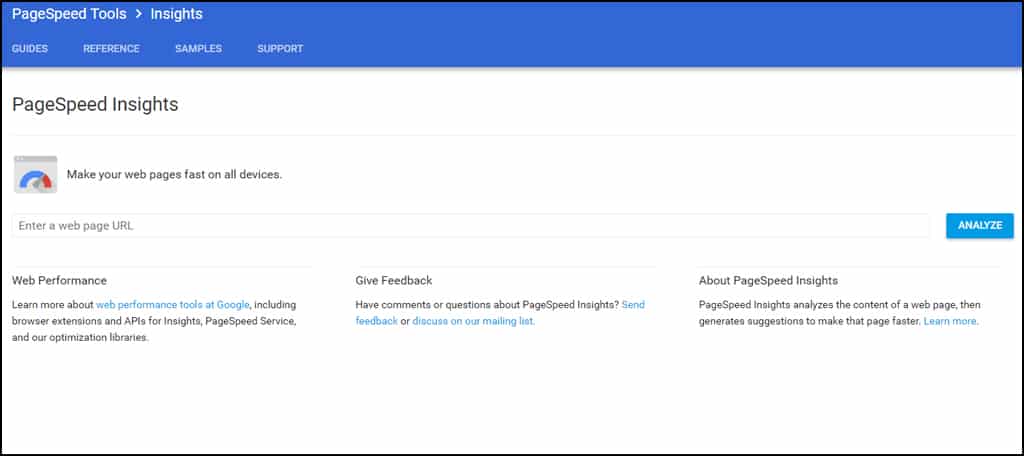
PageSpeed Tools
Website speed is important whether people are using smartphones or older desktop computers. The faster your site, the better it performs in Google.
Because speed plays such a vital role in search engine results, Google offers a free tool to test your pages. PageSpeed Tools not only analyzes your website for performance, but it will also tell you how to improve.
Google isn’t the only site that offers valuable insights into site speed performance, either. Another is the Pingdom speed test. By scrutinizing the various elements of your site, you can get a picture of just what is slowing you down.
As mobile devices are driven by convenience, most users want sites to load up quickly. In fact, approximately 53 percent of mobile users will leave a website if it takes longer than three seconds to load up.
Images, coding, responsive elements, ad serve networks and more all contribute to how long it takes for a page to render in a browser. Any millisecond you can shave off improves your chances of not losing the audience.

9. Continue to Optimize for Desktop Systems

The most important aspect to your SEO strategy is to not give up optimizing for desktop computers. This is because of two very important reasons:
  1. Desktop and laptop computers still contribute to more than 58 percent of Internet activity in the United States.
  2. Not all search engines use the same algorithms as Google.
Although Google remains one of the top search engines on the Internet, it’s not the only one in action. Bing, Yahoo and even DuckDuckGo are all viable methods for many people.
In many ways, the same SEO techniques for desktops can be used for mobile engagement. Things like speed, links, quality content and more are all relevant to a site regardless of the technology.
While mobile optimization is a valid concern, it should be more of an added strategy and not a replacement.

10. Optimizing for Local Users

For businesses that focus marketing on local buzz, optimizing the site for mobile users is also important. This is because more people are turning to Google search to find local businesses than the traditional phone book.
This optimization includes adding your city and state to things like the title tag, H1 headings, alt tags, meta descriptions and URLs. Since people often trust a business that displays contact information, making sure this is prevalent on the mobile site is also important.
Approximately 50 percent of smartphone users and 34 percent of tablet users visit a store they research online the same day. Without optimizing for mobile technology, the business could be losing out to nearby competitors.

How Does Your Site Stack Up?

As more people browse the Internet from their smartphones, the need for optimizing for the mobile-first index in Google grows apparent. Each passing second your site sits without making these adjustments is another potential customer giving money to the competition. An optimized web hosting service can only do so much. It’s up to you to make certain improvements to the website itself for mobile indexing in Google.Special Offer:
Win Piriform CCleaner Professional Giveaway (10 x Full Licenses) support by Group Buy SEO Tools http://www.bestseotools.cc https://www.piriform.com/ccleaner Mention this giveaway part on your blog, and send us link at doogeetop@gmail.com, you can a chance get free Piriform CCleaner Professional V5.30 license.
How to Delete iMessage History on Mac or iPhone/iPad 2019 Guide? [Solved]

How to Delete iMessage History on Mac? Deleting iMessage history on Mac is quite easy. There are two common methods: Disable "Save hist...